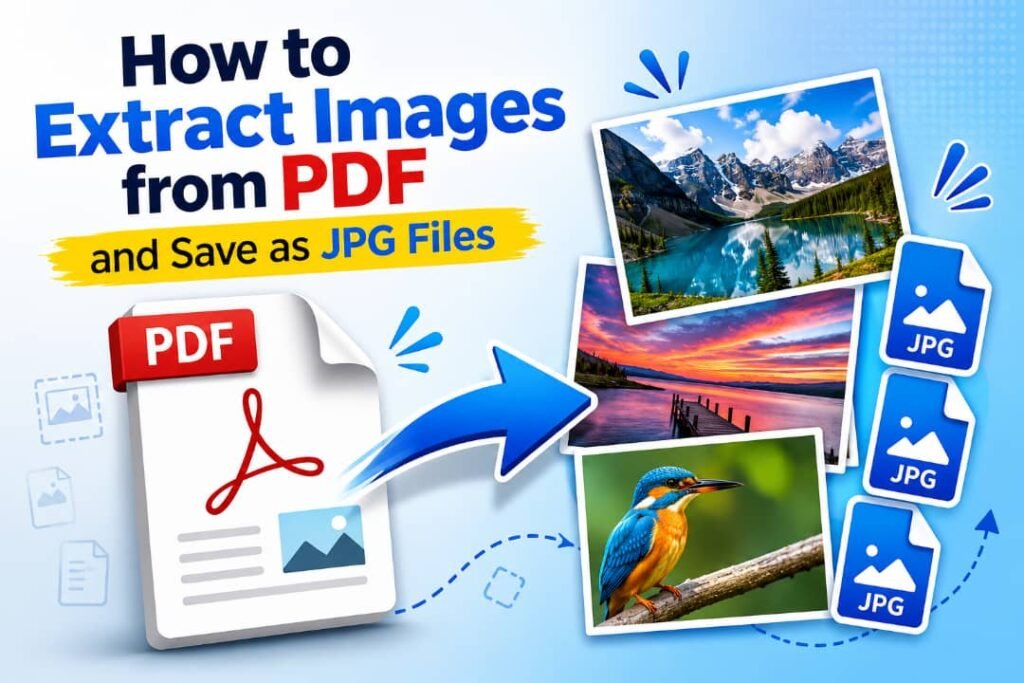
Sometimes you have a PDF file, but what you actually need is an image version of it. Maybe you want to share it on social media, use it in a presentation, or extract just a single page as a picture. In situations like this, converting PDF files into JPG images becomes very useful.
PDF files are great for keeping documents organized and consistent, but they are not always flexible when it comes to visual use. On the other hand, JPG images are easier to view, share, and edit across different platforms.
This is why file conversion has become such an important part of everyday digital work.
What is File Conversion?
File conversion simply means changing a file from one format into another. For example, turning a PDF document into an image file is a common type of file format conversion.
People use file conversion for many reasons, including compatibility, editing, sharing, and storage optimization.
Why Convert PDF into Images?
There are several practical reasons why users convert PDF files into JPG images:
To share pages easily on social media
To use content in presentations or reports
To extract visual elements from documents
To make files easier to view on all devices
Images are more flexible than PDFs in many real-world situations.
Common Problem: PDF File Not Opening as Image
A common issue users face is that a PDF file does not open like a normal image. This happens because PDF is a document format, not an image format.
When this happens, converting the file into JPG format solves the problem instantly and makes the content more usable.
How to Save PDF as Picture
If you want to save a PDF as an image, the process is very simple:
1. Open an online conversion tool
2. Upload your PDF file
3. Select JPG as the output format
4. Click convert
5. Download the result
This method works without any technical skills.
Online Tools vs Software
Today, users have multiple options for file conversion. The most common ones are:
Online Tools
No installation required
Works on any device
Fast and easy to use
Software Applications
More advanced features
Useful for professional editing
Requires installation
For most users, online tools are the fastest and simplest option.
How to Convert PDF to JPG Online Free
Many people search for ways to convert files without paying or installing anything. The easiest method is using online tools.
The process usually looks like this:
Upload your PDF file
Choose JPG format
Start conversion
Download images instantly
This method is widely used because it is quick and accessible from anywhere.
Best Way to Convert PDF to JPG Without Software
If you do not want to install any software, the best option is to use a browser-based tool. These tools work directly online and do not require downloads.
Benefits include:
Works on mobile and desktop
No storage usage
Instant results
Simple interface
Converting PDF Without Losing Quality
One of the biggest concerns during conversion is quality. A good tool ensures that images remain sharp and clear after conversion.
Quality depends on:
Original file resolution
Compression settings
Tool performance
Choosing a reliable converter is important to avoid blurry images.
PDF to JPG Converter Online No Watermark
Many users prefer clean output without logos or watermarks. A good converter should provide images without any branding so they can be used professionally.
This is especially important for:
Business documents
Academic work
Design projects
Fast PDF to Image Conversion
Speed is another important factor. A fast converter helps users process files within seconds, especially when working with multiple pages.
Good tools usually offer:
Quick processing
Batch conversion
Simple interface
How to Extract Images from PDF File
Sometimes users don’t need the entire document—only images inside it. In such cases, image extraction tools are useful.
They allow you to pull out:
Graphics
Charts
Embedded image
This is helpful for designers and content creators.
Converting Multiple PDF Pages to JPG
When a PDF contains multiple pages, each page can be converted into a separate image file. This makes it easier to manage and use each page individually.
Understanding PDF Page to Image Conversion
PDF page to image conversion means turning each page of a document into a standalone image. This is commonly used in presentations and content sharing.
Document to Image Converter Tools
A document to image converter helps transform different file types into image formats. These tools are not limited to PDFs only and often support multiple formats.
Why Online Tools Are So Popular
Online tools have become the preferred choice because they are:
Easy to use
Accessible anywhere
Fast and efficient
Free in most cases
Understanding Compression in File Conversion
Compression reduces file size during conversion. However, too much compression can reduce image quality, so a balance is important.
Importance of Document Formats
Different document formats serve different purposes. PDF is used for structured documents, while JPG is used for visual content. Understanding this helps in choosing the right conversion method.
Step-by-Step File Conversion Process
A typical conversion process includes:
1. Selecting a tool
2. Uploading the file
3. Choosing output format
4. Adjusting settings if needed
5. Downloading the result
FAQs
Why can’t I open a PDF as an image?
Because PDF is a document format, not an image format.
Is online conversion safe?
Yes, if you use trusted tools.
Can I convert large PDF files?
Most modern tools support large files.
Does conversion affect quality?
It depends on the tool and settings used.
Conclusion
Converting PDF files into JPG images has become a simple and essential task in today’s digital workflow. Whether you are a student, office worker, or designer, this process helps make documents more flexible and easier to use.
With modern online tools, you can complete this task quickly without installing any software or dealing with complex settings.